> ## Documentation Index
> Fetch the complete documentation index at: https://docs.blink.so/docs/llms.txt
> Use this file to discover all available pages before exploring further.
# Deploying Your Agent
> Deploy your agent and configure environment variables and webhooks
## The Deploy Command
Once you've built and tested your agent locally, deploy it to your Blink server with a single command:
```bash theme={null}
blink deploy
```
This command:
1. Builds your agent for production
2. Uploads your compiled code and source files to the server
3. Syncs environment variables from `.env.production`
4. Creates a new deployment version
5. Makes your agent live and accessible to users
## First-Time Deployment
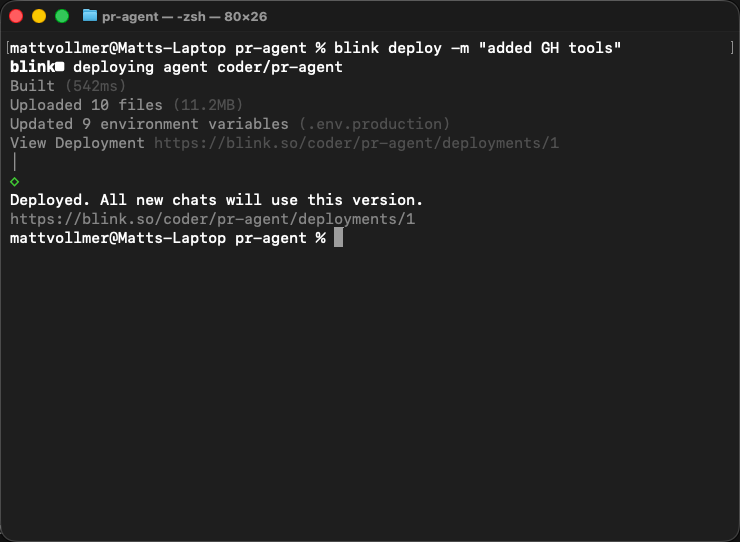 When you run `blink deploy` for the first time, Blink will:
1. **Prompt for organization**: Select which organization should own this agent (or automatically use your only organization)
2. **Create the agent**: Blink creates a new agent using your `package.json` name
3. **Save configuration**: A `.blink/config.json` file is created to remember your deployment settings
The `.blink/config.json` file contains no secrets and can be committed to source control. It links your local agent to your deployment.
## Configuring Environment Variables
Environment variables are how your agent accesses API keys, secrets, and configuration in production.
### Local Development vs Production
Blink uses different environment files for different contexts:
* **`.env.local`** - Used during `blink dev` for local development only
* **`.env.production`** - Deployed to the server with your agent
Create a `.env.production` file in your project root with the variables your agent needs in production:
```bash theme={null}
ANTHROPIC_API_KEY=sk-ant-...
OPENAI_API_KEY=sk-...
GITHUB_TOKEN=ghp_...
```
Run `blink deploy`. Blink automatically uploads all variables from `.env.production` to the server.
```bash theme={null}
blink deploy
```
Blink compares your `.env.local` and `.env.production` files. If any variables exist in `.env.local` but not in production, you'll see a warning:
```
Warning: The following environment variables are set in .env.local
but not in .env.production:
- SLACK_BOT_TOKEN
- DATABASE_URL
Do you want to deploy anyway?
```
This helps catch missing configuration before your agent fails in production.
Environment files are ignored by default. When you create a new agent, `.env`
files are automatically added to `.gitignore` to keep your secrets safe.
## Webhooks in Production
If your agent handles webhooks (from Slack, GitHub, etc.), Blink provides a production webhook URL after deployment.
### Local Development Webhooks
During `blink dev`, Blink provides a temporary webhook URL via devhook:
```bash theme={null}
blink dev
# Output: ⚙ Send webhooks from anywhere: https://abc123.blink.host
```
This URL forwards webhooks to your local machine for testing.
### Production Webhooks
After running `blink deploy`, your agent gets a permanent webhook URL.
#### Automatic Webhook Migration
On your **first deployment**, if you've been using devhook during local development, Blink will prompt you to migrate your webhook tunnel to production:
```bash theme={null}
blink deploy
Webhook Tunnel
Current: https://abc123.blink.host → local dev
After: https://abc123.blink.host → production
Migrating will keep your webhooks working in production
? Migrate tunnel to production? (Y/n)
```
If you choose **Yes**:
* Your devhook URL (`https://abc123.blink.host`) automatically points to your production agent
* Your existing webhook integrations (Slack, GitHub, etc.) continue working without reconfiguration
* You don't need to update webhook URLs in external services
If you choose **No**:
* Your agent gets a new production webhook URL
* You'll need to manually update webhook configurations in external services
To continue developing locally with webhooks after migration, you'll need to
reconfigure external services to point back to your new devhook URL when
running `blink dev`.
## Deployment Workflow
Here's the recommended workflow for deploying updates:
Build and test your changes using `blink dev`. Use the temporary devhook URL for testing webhooks.
If you added new environment variables to `.env.local`, add them to `.env.production` as well.
Run `blink deploy` to create a new deployment. Optionally, add a message describing the changes:
```bash theme={null}
blink deploy -m "Add GitHub issue creation tool"
```
Blink polls until your deployment is live. If it succeeds, all users immediately start using the new version.
If deployment fails, Blink shows the error and provides a link to view logs in the dashboard.
Test your agent to ensure everything works as expected. Check the deployment logs if you encounter issues.
## Deployment Versions
Each `blink deploy` creates a new numbered deployment (e.g., #1, #2, #3). This allows you to:
* **Track changes**: See what changed in each deployment
* **Roll back**: Revert to a previous version if issues arise
* **Compare performance**: Measure improvements across versions
View all deployments in the web UI under your agent's **Deployments** tab.
## Troubleshooting
### Deployment fails with "Missing environment variable"
Your agent code references an environment variable that isn't set in `.env.production` or the dashboard. Add the missing variable and redeploy.
### Webhooks not working in production
Verify that:
1. You've updated the webhook URL in the service's settings (Slack, GitHub, etc.)
2. Your agent's `request` event handler is properly configured
3. The webhook URL is correct (check the output after `blink deploy`)
### Changes not appearing after deployment
Check the deployment status in the dashboard. If the deployment succeeded but you don't see changes:
* Clear your browser cache
* Verify you're testing in the correct organization/agent
* Check if you're in a different chat that might have cached state
When you run `blink deploy` for the first time, Blink will:
1. **Prompt for organization**: Select which organization should own this agent (or automatically use your only organization)
2. **Create the agent**: Blink creates a new agent using your `package.json` name
3. **Save configuration**: A `.blink/config.json` file is created to remember your deployment settings
The `.blink/config.json` file contains no secrets and can be committed to source control. It links your local agent to your deployment.
## Configuring Environment Variables
Environment variables are how your agent accesses API keys, secrets, and configuration in production.
### Local Development vs Production
Blink uses different environment files for different contexts:
* **`.env.local`** - Used during `blink dev` for local development only
* **`.env.production`** - Deployed to the server with your agent
Create a `.env.production` file in your project root with the variables your agent needs in production:
```bash theme={null}
ANTHROPIC_API_KEY=sk-ant-...
OPENAI_API_KEY=sk-...
GITHUB_TOKEN=ghp_...
```
Run `blink deploy`. Blink automatically uploads all variables from `.env.production` to the server.
```bash theme={null}
blink deploy
```
Blink compares your `.env.local` and `.env.production` files. If any variables exist in `.env.local` but not in production, you'll see a warning:
```
Warning: The following environment variables are set in .env.local
but not in .env.production:
- SLACK_BOT_TOKEN
- DATABASE_URL
Do you want to deploy anyway?
```
This helps catch missing configuration before your agent fails in production.
Environment files are ignored by default. When you create a new agent, `.env`
files are automatically added to `.gitignore` to keep your secrets safe.
## Webhooks in Production
If your agent handles webhooks (from Slack, GitHub, etc.), Blink provides a production webhook URL after deployment.
### Local Development Webhooks
During `blink dev`, Blink provides a temporary webhook URL via devhook:
```bash theme={null}
blink dev
# Output: ⚙ Send webhooks from anywhere: https://abc123.blink.host
```
This URL forwards webhooks to your local machine for testing.
### Production Webhooks
After running `blink deploy`, your agent gets a permanent webhook URL.
#### Automatic Webhook Migration
On your **first deployment**, if you've been using devhook during local development, Blink will prompt you to migrate your webhook tunnel to production:
```bash theme={null}
blink deploy
Webhook Tunnel
Current: https://abc123.blink.host → local dev
After: https://abc123.blink.host → production
Migrating will keep your webhooks working in production
? Migrate tunnel to production? (Y/n)
```
If you choose **Yes**:
* Your devhook URL (`https://abc123.blink.host`) automatically points to your production agent
* Your existing webhook integrations (Slack, GitHub, etc.) continue working without reconfiguration
* You don't need to update webhook URLs in external services
If you choose **No**:
* Your agent gets a new production webhook URL
* You'll need to manually update webhook configurations in external services
To continue developing locally with webhooks after migration, you'll need to
reconfigure external services to point back to your new devhook URL when
running `blink dev`.
## Deployment Workflow
Here's the recommended workflow for deploying updates:
Build and test your changes using `blink dev`. Use the temporary devhook URL for testing webhooks.
If you added new environment variables to `.env.local`, add them to `.env.production` as well.
Run `blink deploy` to create a new deployment. Optionally, add a message describing the changes:
```bash theme={null}
blink deploy -m "Add GitHub issue creation tool"
```
Blink polls until your deployment is live. If it succeeds, all users immediately start using the new version.
If deployment fails, Blink shows the error and provides a link to view logs in the dashboard.
Test your agent to ensure everything works as expected. Check the deployment logs if you encounter issues.
## Deployment Versions
Each `blink deploy` creates a new numbered deployment (e.g., #1, #2, #3). This allows you to:
* **Track changes**: See what changed in each deployment
* **Roll back**: Revert to a previous version if issues arise
* **Compare performance**: Measure improvements across versions
View all deployments in the web UI under your agent's **Deployments** tab.
## Troubleshooting
### Deployment fails with "Missing environment variable"
Your agent code references an environment variable that isn't set in `.env.production` or the dashboard. Add the missing variable and redeploy.
### Webhooks not working in production
Verify that:
1. You've updated the webhook URL in the service's settings (Slack, GitHub, etc.)
2. Your agent's `request` event handler is properly configured
3. The webhook URL is correct (check the output after `blink deploy`)
### Changes not appearing after deployment
Check the deployment status in the dashboard. If the deployment succeeded but you don't see changes:
* Clear your browser cache
* Verify you're testing in the correct organization/agent
* Check if you're in a different chat that might have cached state